


We could not fully load this page
Some interactive features are unavailable right now. Reload the page or continue to one of the pages below.
Your signature – access to your digital identity



What is an electronic signature?
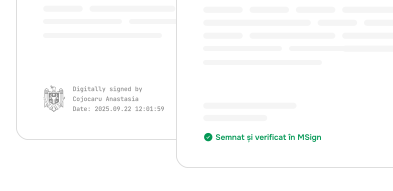
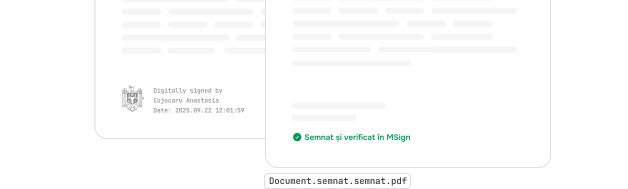
-
Official recognition
-
Digital safety
-
Legal value
Why get an electronic signature?
For you
-
Access your digital documents
-
Use all digital public services in Moldova through EVO
-
Receive a Cultural Voucher worth 1,000 MDL at the age of 18
-
Submit your university admission file 100% online
-
Sign documents and contracts via the MSign platform
-
Grant authorizations through MPower
-
Authenticate across all government systems integrated with MPass and more
For your business
-
Start and manage your business online
-
Electronically sign contracts, invoices, and official documents
-
Quickly assign representation rights through MPower
-
Fill in reports and submit declarations
-
Access Moldova’s digital services through EVO
-
Digitalize internal processes through electronic signing and integration with MSign and other platforms
How to obtain an electronic signature

Mobile signature
Get your mobile signature from Orange or Moldcell and use it to log in and sign documents directly from your phone — even if you use an eSIM. The signature is valid for 2 years from activation, and the service cost is set by each operator according to their own pricing plans."
Qualified signature
Information Technology and Cyber Security Service (STISC)
Go to Any Orange or Moldcell Store
Visit one of the mobile operators and request the activation of the mobile signature service in your name.Present your ID
The operator will verify your identity and help you complete the required documents.Receive a new SIM card (if needed)
You will receive a new SIM card (only if necessary), where your electronic signature will be installed.Set up your PIN code
Choose a personal PIN code, which you’ll use to authorize each electronic signing action from your phone.Quick activation
Within minutes, the service will be activated on your SIM card — you’ll receive an SMS confirmation.Your signature is now active
Identity card
New
With the new identity card, you have an electronic signature already included. You can use it free of charge for signing, authentication, and accessing digital public services without additional costs. The fees and service terms for issuing the identity card vary depending on the type of application and the chosen processing time.
Qualified signature
Information Technology and Cyber Security Service (STISC)
Apply for an electronic identity card
At the counter, submit your application for the new chip-based document and request the activation of your electronic signature.Collect your document, card reader, and access codes
When collecting your identity card, you will receive a card reader and two codes (PIN/PUK) linked to your electronic signature stored on the chip.Activate and use your signature
Follow the instructions, insert your identity card into the reader, enter the received PIN code, and activate your electronic signature.Your signature is now active
USB token signature
Use the electronic signature stored on a USB stick to sign documents directly from your computer. The service fees, terms, and signature validity period are set by the Information Technology and Cyber Security Service.
485 lei/valid for 2 years
10-15 minutes
Free
Submit your application at one of the registration centers
Request a USB token from STISC or from authorized partners. See the full list on semnatura.md.Receive your USB stick
It comes with an initial PIN code and user instructions.Activate your USB token and sign
Insert the stick into your computer’s USB port, open the signing application, and enter the received PIN code to access your digital certificate.Important: at first use, change the initial PIN code to one known only to you. This ensures that your electronic signature remains secure.Your signature is now active
Where can you use your electronic signature?
Sign documents on MSign
Access EVO — app or web
Start a business, authorize actions, and perform online transactions
Submit documents, access online services, and file petitions.

Frequently Asked Questions
Where can I seek assistance if I encounter an issue with my electronic signature?
For any questions or issues related to electronic signatures, it is best to contact the official provider directly.
STISC – Information Technology and Cybersecurity Service offers support, regardless of whether you use a mobile signature, ID card, or USB token.
Contact details:
- Tel: 0 (22) 820 911
- URL: https://semnatura.md/
How do I use my electronic signature for authentication?
It's simple and takes just a few seconds:
- - Go to the desired portal — for example, https://mpower.gov.md
- - Click on Authentication (top right).
- - Select your signature type and enter your PIN.
The same steps apply to any government platform that requires electronic authentication.
How do I sign a document online?
You can sign a document in two ways:
Online signing with MSign (fast and no installation required):
- - Make sure you have the document in PDF format.
- - Go to https://msign.gov.md/
- - Select Sign and upload the document.
- - Apply your signature in the indicated box and enter your PIN.
- - Download the signed document.
Signing from your computer with MoldSign (desktop application):
- - Install the MoldSign application from https://semnatura.md/
- - Open the application and select the PDF document.
- - Place the red box in the document where you want the signature to appear.
- - Select the signing option and follow the authentication steps (PIN).
- - Save the signed document.
How can I verify that a document has been signed correctly?
You can verify an electronically signed document in two ways—online or directly from your computer:
1. Online verification with MSign (fast, no installation required):
- - Go to https://msign.gov.md/
- - Select Verify.
- - Upload the signed PDF document.
- - The system will immediately show you whether the signature is valid and who signed the document.
2. Verification using the MoldSign desktop application:
- - Open the MoldSign application installed on your computer.
- - Select the Verify document option.
- - Select the signed PDF file.
- - The application will display the signature details and its validity.
What should I do if I have forgotten my electronic signature PIN or it has been blocked?
Regardless of the type of signature, you have two options:
- - Unlock the PIN using the PUK you received when the signature was issued.
- - If you do not have the PUK, contact the provider who issued the signature directly (including for mobile signatures).
What should I do if I forgot my PIN or blocked it?
Contact the provider who issued the signature immediately. They will guide you step by step through the process of canceling the old one and issuing a new one.
